

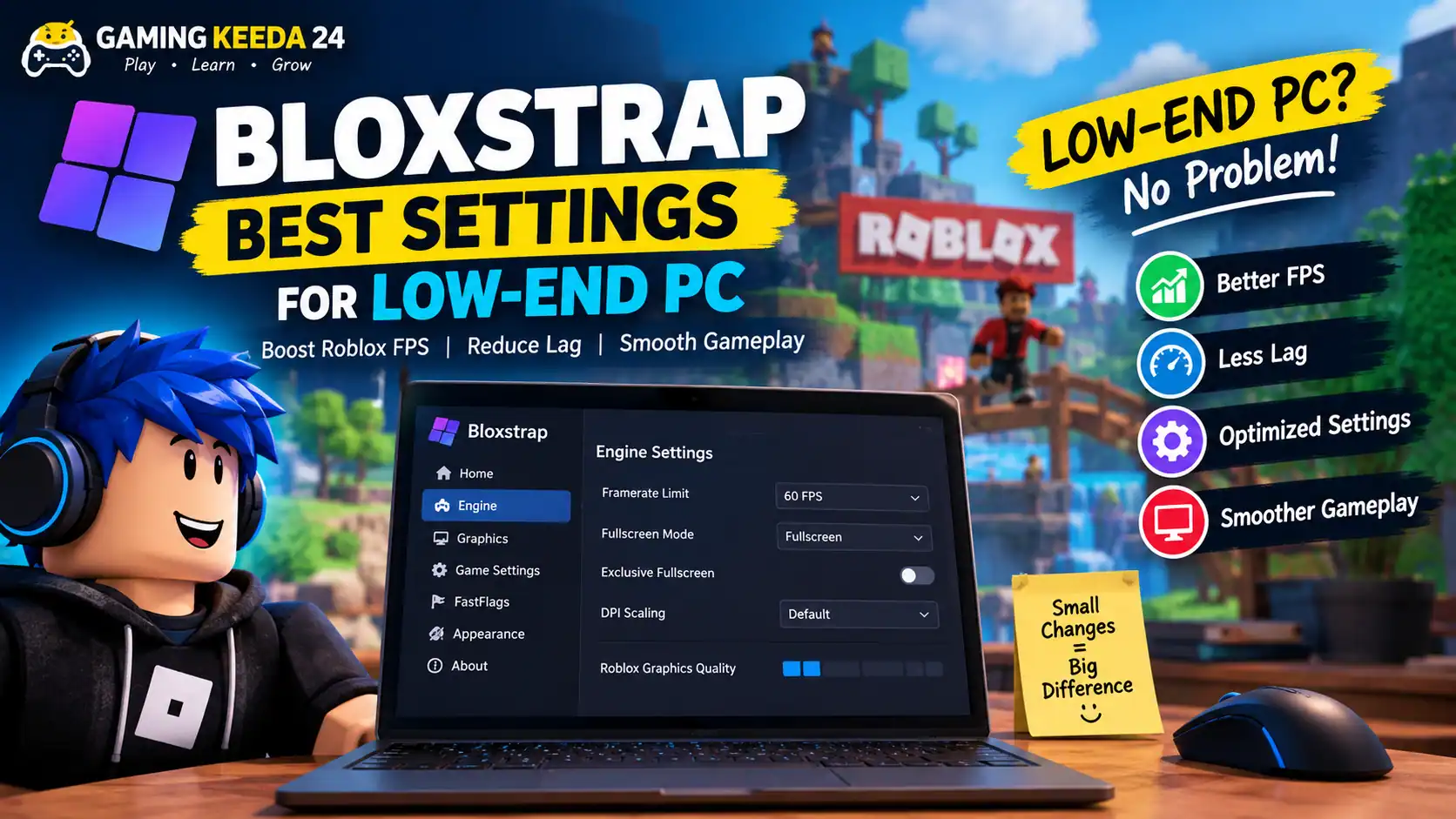
Roblox running slowly on your low-end PC? The right graphics settings, a clean Windows setup, and a few sensible Bloxstrap options can help make your gameplay smoother. You do not always need an expensive graphics card or a new gaming laptop to enjoy Roblox.
At Gaming Keeda 24, we believe gaming guides should be easy to follow, even if you are new to PC gaming. In this guide, we will explain the best Bloxstrap settings for low-end PCs, how to reduce FPS drops, which settings you should avoid, and what to do if Roblox still lags after optimization.
Whether you are using an older laptop, an entry-level desktop, or a PC with integrated graphics, this guide will help you find the right starting point.
Quick note: Bloxstrap cannot magically upgrade your hardware or guarantee higher FPS. Also, Roblox changed how client FastFlags work in September 2025, so many older tutorials no longer apply. We recommend starting with supported settings rather than copying random configuration files.
Quick Answer: Best Bloxstrap Settings for Low-End PC
If you want to get straight to the settings, start with these recommendations.
| Setting | Recommended option |
|---|---|
| Roblox graphics mode | Manual |
| Roblox graphics quality | 1–3 bars |
| FPS target | Stable 30 or 60 FPS, depending on your PC |
| Display mode | Test normal fullscreen first |
| Bloxstrap FastFlags | Keep default settings unless you understand the option |
| Background applications | Close unnecessary apps |
| Windows power mode | Best performance when plugged in |
| Windows Game Mode | On; test performance |
| Texture and graphics tweaks | Avoid unsupported custom flags |
| Roblox resolution | Lower it if your GPU struggles |
These are starting recommendations, not universal rules. A lightweight Roblox experience may run well at higher settings, while a demanding experience with many players and effects may struggle even at the lowest graphics quality.
What Is Bloxstrap, and Why Do Players Use It?
Bloxstrap is an alternative launcher for Roblox on Windows. It provides additional launcher features and supported customisation options that are not all available through the standard Roblox launcher.
Players often look for Bloxstrap because they want to customise their Roblox experience, manage certain launcher settings, or experiment with performance-related options.
However, there is one important difference to understand: Bloxstrap is not a dedicated FPS booster. Your actual performance still depends on your processor, graphics hardware, RAM, storage, the Roblox experience you play, and the current Roblox client.
You can read the official documentation here:
Before changing anything, download Bloxstrap only from a trusted official source and check that your installed version is compatible with the current Roblox client.
1. Set Roblox Graphics Quality to the Lowest Level
This is the first setting we recommend changing on a low-end PC.
Roblox has its own graphics controls, and you do not need complicated FastFlags to access them.
Follow these steps:
- Open Roblox and join an experience.
- Press
Escto open the in-game menu. - Open Settings.
- Find the Graphics Mode option.
- Change Graphics Mode to Manual.
- Move the Graphics Quality slider to 1.
- Play for a few minutes and check whether the game feels smoother.
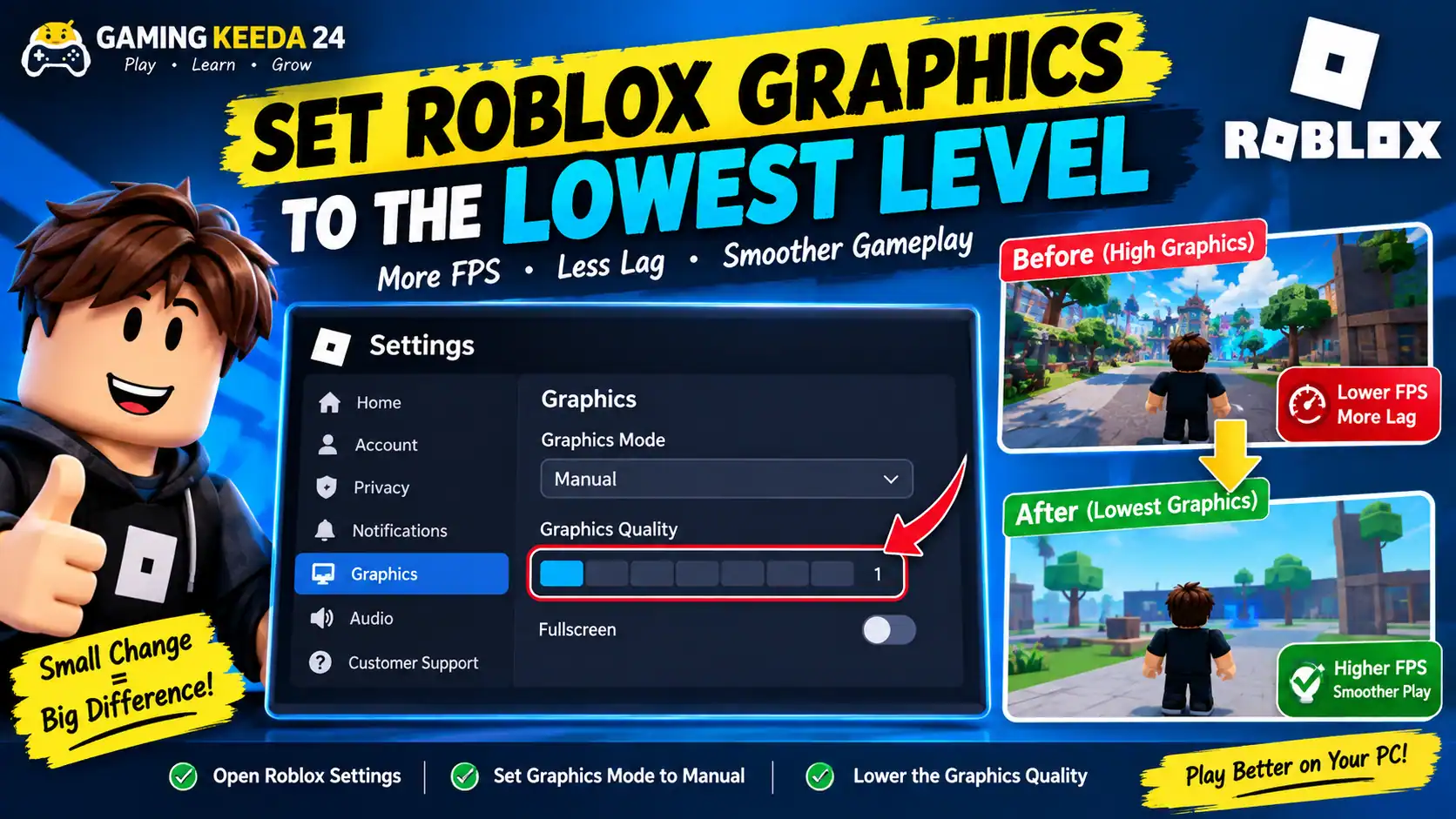
Start at one bar. If your PC handles the experience comfortably, try two or three bars.
Which graphics level should you use?
| PC type | Starting graphics level |
|---|---|
| Very old PC or laptop | 1 bar |
| Basic office laptop | 1–2 bars |
| Entry-level gaming PC | 2–4 bars |
| Modern gaming PC | Adjust according to performance |
These categories are only general guidance. The same PC can perform differently in different Roblox experiences.
Gaming Keeda 24 tip: Do not increase graphics simply because the game looks better. First find a setting that delivers stable gameplay, then increase visual quality gradually.
2. Use Sensible Bloxstrap Engine Settings
Open Bloxstrap from the Windows Start menu and look through the settings available in your installed version.
The exact options can change between releases, so do not assume that a tutorial recorded months ago matches your current menu.
For a low-end PC, we recommend keeping things simple.
Exclusive Fullscreen
Bloxstrap’s documentation describes an exclusive fullscreen option that can be activated with Alt + Enter when supported.
It may offer a small performance improvement on some systems, but it can also cause problems with mouse visibility, frame pacing, or switching between applications.
Our recommendation:
- Test ordinary fullscreen first.
- Try exclusive fullscreen only if it is available and you want to compare performance.
- Keep whichever mode works more reliably on your PC.
Do not expect fullscreen alone to double your FPS.
Framerate Limit
Your FPS target should match what your PC can maintain, not just the refresh rate printed on your monitor.
For example:
- If your PC struggles to maintain 60 FPS, try a stable 30 FPS target where a supported limiter is available.
- If your PC maintains around 60 FPS comfortably, use 60 FPS as a sensible target.
- If you have a high-refresh-rate monitor and enough performance headroom, you can test a higher target.
A stable frame rate often feels better than a frame rate that jumps constantly between high and low values.
One important detail: older Bloxstrap guides frequently recommend the launcher’s custom FPS unlocker or specific FastFlags. Those instructions may no longer work as described. Roblox’s official client changes have restricted which FastFlags can be applied, and older Bloxstrap releases removed several settings.
For current behaviour, consult the official Engine Settings documentation.
DPI Scaling
Do not enable every display-related tweak just because a guide calls it an FPS boost.
The DPI scaling option documented by Bloxstrap is intended to address rendering behaviour on displays using Windows scaling above 100%. It is not a general-purpose FPS booster.
If your Roblox interface looks blurry or renders differently from what you expect, investigate this setting. If your main priority is performance, leave unnecessary visual overrides disabled.
3. Should You Use Bloxstrap FastFlags for More FPS?
FastFlags are configuration switches used by Roblox to control certain client behaviours. Bloxstrap historically allowed users to override some of these options.
Many online guides recommend importing a large list of FastFlags to reduce shadows, change textures, modify rendering distance, or unlock FPS.
We do not recommend blindly copying these lists.
Roblox introduced restrictions on client FastFlags in September 2025. As a result, many older tweaks are no longer applied to the Roblox Player, and some historical Bloxstrap options have been removed.
Before using any FastFlag:
- Check whether it is supported by your current Roblox client.
- Understand what the option changes.
- Avoid unknown configuration files and huge copy-and-paste lists.
- Change one setting at a time, where supported.
- Restore the default configuration if Roblox starts crashing or behaving strangely.
Do not assume that a flag works simply because it appears in a YouTube description.
For technical details, read the official Bloxstrap FastFlags guide.
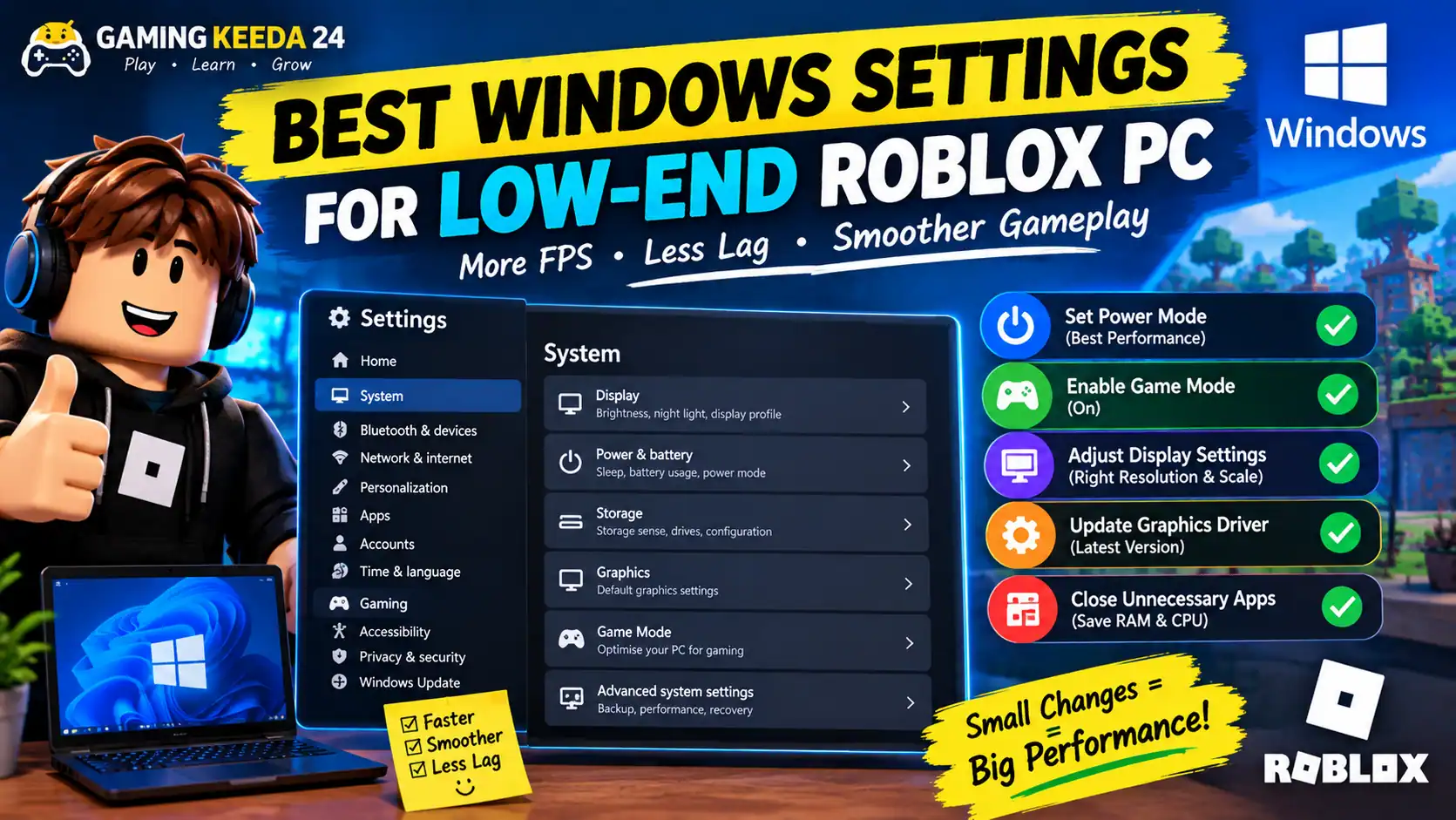
4. Best Windows Settings for a Low-End Roblox PC
Bloxstrap is only one part of performance optimisation. Windows settings and background applications can matter just as much.
Close unnecessary background apps
Before opening Roblox, close applications that you do not need, especially:
- Multiple browser windows with many tabs.
- Video editing software.
- Large downloads and file transfers.
- Unnecessary game launchers.
- Background applications consuming significant CPU or RAM.
You can check resource usage by pressing Ctrl + Shift + Esc to open Task Manager.
Look at the CPU, Memory, and GPU columns. Close only applications you recognise and do not need. Avoid ending unfamiliar Windows system processes.
Enable Windows Game Mode
On supported Windows versions:
- Open Windows Settings.
- Select Gaming.
- Open Game Mode.
- Turn Game Mode on.
- Restart Roblox and compare performance.
Game Mode may help prioritise gaming activity on some systems, but the results vary. Test it rather than assuming it will improve every PC.
Choose an appropriate power mode
On a laptop, battery-saving settings may reduce performance.
- Connect your laptop to its charger.
- Open Windows Settings.
- Go to System, then Power & battery, if those options are available.
- Select a performance-oriented power mode.
- Check whether performance improves.
Keep your laptop on a hard, flat surface so the cooling vents remain clear. If it becomes very hot, thermal throttling may reduce performance.
Update your graphics driver
An outdated or corrupted graphics driver can cause performance problems or crashes.
Download drivers through Windows Update or the official support website for your Intel, AMD, or NVIDIA graphics hardware.
Avoid random driver-updater programs that promise unrealistic FPS improvements.
5. Lower Your Resolution if Roblox Still Lags
If your graphics quality is already at one bar but Roblox continues to stutter, try reducing the game’s rendering resolution.
Rendering fewer pixels can reduce the load on your graphics hardware.
For example, if you normally play at 1920 × 1080, test a lower resolution such as 1600 × 900 or 1280 × 720, if available through your display setup.
The trade-off is that the image may look less sharp.
For a very weak integrated GPU, this can be worth testing. However, if the processor is the main bottleneck, lowering the resolution may make little difference.
6. Best Bloxstrap Settings for Different Low-End PCs
There is no single configuration that works best for every system. Use the following starting points and adjust them based on your results.
PC with 4 GB RAM
Recommended approach:
- Close browsers and unnecessary applications.
- Keep Roblox graphics at one bar.
- Use a modest FPS target.
- Make sure Windows has enough free memory.
- Avoid running recording software while playing.
With 4 GB RAM, Windows and Roblox can compete for limited memory. Stuttering may continue even when graphics quality is low.
PC with 8 GB RAM
Recommended approach:
- Start with one or two graphics bars.
- Close memory-heavy applications.
- Test a 60 FPS target if the system can maintain it.
- Keep graphics drivers up to date.
- Monitor memory usage during gameplay.
Eight gigabytes can be enough for many Roblox experiences, but demanding games and background applications can still cause problems.
Old Intel HD or integrated graphics
Recommended approach:
- Start with one graphics bar.
- Test a lower resolution.
- Keep background applications to a minimum.
- Make sure the system is not overheating.
- Avoid graphics enhancements that add rendering work.
Integrated graphics use system memory, so limited RAM bandwidth and memory capacity may affect performance.
Low-end gaming PC with a dedicated GPU
Recommended approach:
- Start at two or three graphics bars.
- Test the native display resolution first.
- Check whether Roblox is using the expected graphics processor.
- Monitor CPU and GPU usage.
- Increase graphics quality only when frame pacing remains smooth.
A dedicated GPU does not automatically guarantee high FPS. The CPU, game design, and server conditions can still be limiting factors.
7. How to Check Whether Your Settings Actually Work
Do not judge performance from a single moment in the game.
We recommend comparing performance before and after changing settings.
- Choose one Roblox experience.
- Play in the same area for a few minutes.
- Record the approximate FPS and note any stutters.
- Change only one setting.
- Restart Roblox if required.
- Repeat the same test.
- Keep the change only if it provides a real improvement without introducing new issues.
For a fair comparison, try to use the same experience, graphics level, resolution, and similar in-game conditions.
Roblox performance can change because of player counts, scripts, effects, server conditions, and updates. One test cannot prove that a setting will work equally well everywhere.
8. Roblox Still Lagging After Bloxstrap Optimisation?
The word “lag” can describe several different problems. Identifying the right one can save you time.
| Problem | Common signs | What to try |
|---|---|---|
| Low FPS | Choppy movement and low frame rate | Lower graphics and resolution |
| Stuttering | Short freezes or sudden frame drops | Check RAM, background apps, and overheating |
| High ping | Delayed actions or players teleporting | Check Wi-Fi, network congestion, and connection stability |
| Long loading times | Slow game launches or loading screens | Check storage, internet, and game-specific issues |
| Crashes | Roblox closes unexpectedly | Restore defaults and check drivers and client updates |
If you have high ping
Lowering graphics quality generally does not fix network latency.
Try moving closer to your Wi-Fi router, using Ethernet where possible, stopping large downloads, and testing another network if available.
If you have low FPS
Start with graphics quality, resolution, background applications, and temperature. These are more sensible first steps than experimenting with unknown FastFlags.
If Roblox crashes after changing settings
Restore the settings you changed, remove unsupported overrides, and restart the client. If the problem continues, test the standard Roblox launcher to help determine whether it is related to Bloxstrap or something else on the system.
9. Recommended YouTube Videos for Bloxstrap Settings
If you prefer watching someone demonstrate the settings, these videos can be useful supplementary resources.
Video 1: Bloxstrap Settings + Fast Flags Guide (2026)
Recommended for understanding the launcher, its settings, and the differences between performance options.
Video 2: Roblox Fast Flags Tutorial with Bloxstrap + Best Settings
This tutorial discusses FastFlags, performance tweaks, and troubleshooting. Some of its instructions may be outdated, so verify each setting against the current official documentation before following it.
Our recommendation: Watch these videos to understand the concepts, but do not copy every flag or download unknown configuration files. A video being labelled “2026” does not guarantee that every method still works with the latest Roblox client.
For the most reliable instructions, use the official Bloxstrap documentation alongside any video tutorial.
10. Frequently Asked Questions
What are the best Bloxstrap settings for a low-end PC?
Start with Roblox graphics quality at one or two bars, a sensible FPS target, minimal background applications, and default Bloxstrap settings. Test resolution and supported options individually.
Does Bloxstrap increase FPS?
Bloxstrap can provide certain launcher features and configuration options, but it does not guarantee an FPS increase. Results depend on your PC, Roblox experience, and the options supported by your current client.
Is Bloxstrap safe to use?
Use the official project website, avoid suspicious installers, and review the current project documentation. No third-party launcher should be treated as risk-free, and you should avoid tools that ask for your Roblox password outside a legitimate Roblox sign-in flow.
Which FPS is best for a low-end PC: 30 or 60?
A stable 60 FPS can feel smoother, but it is not always achievable on older hardware. If performance constantly drops, a stable 30 FPS target may provide a more consistent experience.
Do Bloxstrap FastFlags still work in 2026?
Some options may work, but Roblox restricted which client FastFlags can be applied starting in September 2025. Older tutorials may describe settings that are no longer supported. Check the latest official documentation before using them.
Can I play Roblox without a graphics card?
Yes. Many PCs can run Roblox using integrated graphics, provided the hardware and operating system meet the game’s requirements. Demanding experiences may need lower graphics settings and resolution.
Does Bloxstrap reduce ping?
Bloxstrap settings are not a guaranteed solution for high ping. Network latency is different from low FPS, and graphics tweaks generally cannot fix a slow or unstable internet connection.
Final Verdict: The Best Bloxstrap Setup for Low-End PC
If you want smoother Roblox gameplay, start with the basics before trying complicated tweaks.
Set graphics quality to one bar, close unnecessary background applications, check Windows power settings, update your graphics driver, and test a lower resolution if necessary. Keep Bloxstrap’s configuration simple and use only options supported by the current version.
At Gaming Keeda 24, our approach is straightforward: test real performance improvements instead of trusting every FPS-boost claim online. The best setup is the one that makes your favourite Roblox experience smoother and more stable on your actual PC.
If you are still struggling, check your CPU, RAM, graphics hardware, and the specific Roblox experience you play. Those details will help you identify the next step more accurately.

