

Roblox Studio lagging on your MacBook? If you’re dealing with FPS drops, freezing, slow movement in the 3D viewport, or stuttering while play-testing a Roblox game, the problem may not be your MacBook alone. Project complexity, memory pressure, graphics settings, background applications, and Studio-specific bugs can all contribute to poor performance.
In this guide, I’ll walk through troubleshooting methods worth trying in 2026, starting with the simplest fixes and moving to more advanced solutions. The goal is to help you identify what’s causing the lag instead of changing random settings and hoping something works.
Why Is Roblox Studio Lagging on Your MacBook?
Roblox Studio is more demanding than simply opening a Roblox game. When you’re building a map, editing terrain, working with scripts, loading assets, and testing your game, Studio has to manage multiple editor panels and a 3D environment simultaneously.
- Too many resource-intensive applications running in the background.
- A large or poorly optimized Roblox project.
- Graphics settings that are too demanding for your hardware.
- High memory pressure or limited available RAM.
- A MacBook that is getting hot during extended sessions.
- An outdated Studio installation or software-related bug.
- Network latency when saving, publishing, or testing online features.
Low FPS and network lag are not the same problem. If camera movement and animations stutter, investigate performance first. If the editor feels smooth but online players teleport or actions arrive late, investigate the network connection.
1. Restart Your MacBook and Roblox Studio
Save your Roblox project, close Studio completely with Command + Q, close apps you don’t need, restart your MacBook, and open Studio again. Test a simple Baseplate before opening your heaviest project. If performance improves after a fresh launch but degrades later, check memory pressure, temperature, and background processes.
2. Lower Graphics Quality and Reduce Visual Load
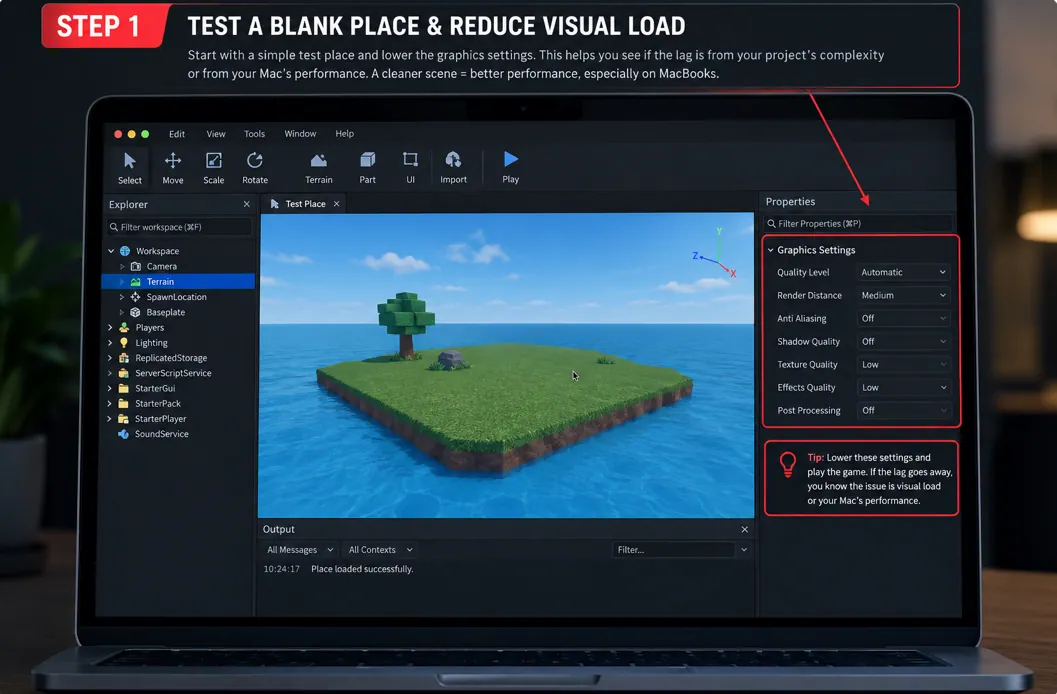
Graphics settings are worth checking when the 3D viewport feels sluggish. Open Studio Settings (the documented shortcut is Option + S), and review the options available in your installed version. For play-testing, also check the in-experience graphics settings where applicable. Studio editor settings and player graphics options are not necessarily identical.
Start with a simple scene, reduce unnecessary effects in your own project, and compare performance. Change one setting at a time so you can tell which change helped.
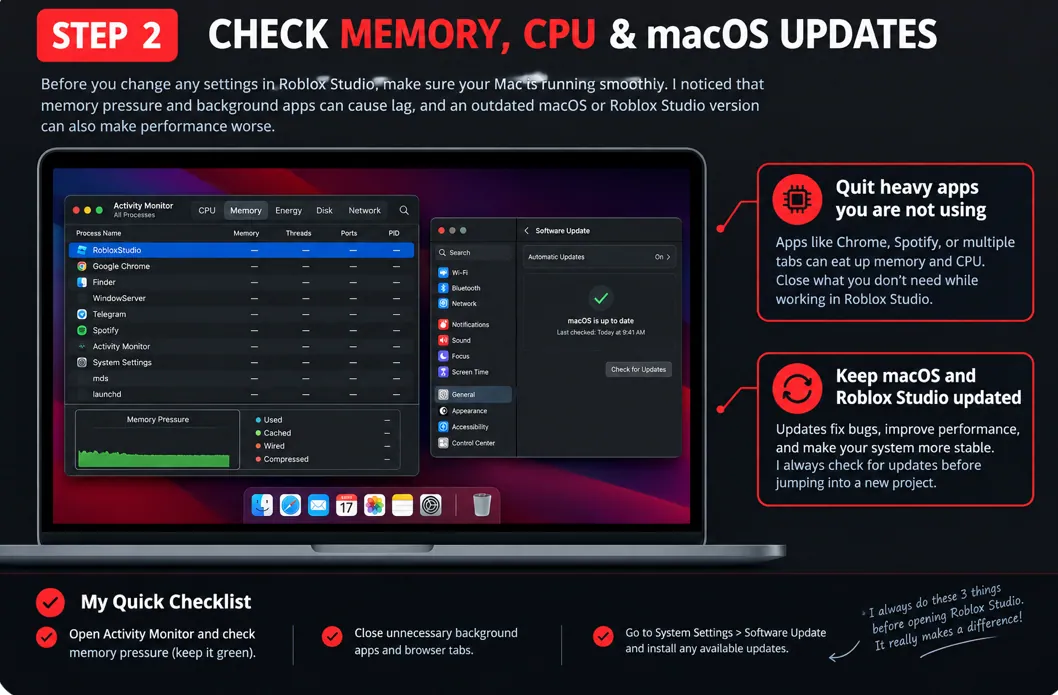
3. Check Activity Monitor for High CPU and Memory Usage
- Press Command + Space.
- Type Activity Monitor and open it.
- Select the Memory tab.
- Look at Roblox Studio and other applications using significant memory.
- Check the Memory Pressure graph at the bottom.
Green memory pressure generally means macOS is managing memory comfortably; yellow or red suggests resources may be constrained. Check the CPU tab too. High memory use alone does not prove RAM is the cause, because macOS also uses available memory for caching.
4. Close Browser Tabs and Background Applications
Close unnecessary Chrome or Safari tabs, video streaming apps, background downloads, and development tools you aren’t using. If needed, stop screen recording while testing. Avoid disabling essential security software or unfamiliar system processes. Reopen Studio and compare the same scene under similar conditions.
5. Test Roblox Studio With a Blank Baseplate
- Save and close your current project.
- Create a new Baseplate project.
- Let it finish loading.
- Move the camera around and test play mode briefly.
- Compare the result with your original project.
If the blank Baseplate is smooth: your project may contain expensive assets, scripts, or effects. If it also stutters: investigate system resources, Studio installation, macOS compatibility, and application bugs. If edit mode is smooth but play mode is slow: inspect runtime scripts, physics, spawned objects, and rendering workload.
6. Optimize Your Roblox Project
Reduce unnecessary parts and objects
Review decorative objects, repeated assets, and hidden elements. Simplify the environment where possible.
Review textures and materials
Use suitable texture resolutions and avoid highly detailed assets where simpler ones look just as good.
Reduce excessive particle effects
Temporarily disable smoke, sparks, explosions, and other effects, then re-enable them individually to identify expensive elements.
Investigate expensive scripts
Review frequent loops, repeated object creation, costly calculations, and scripts that repeatedly scan large collections. Consider more efficient logic and event-driven approaches.
Review physics and collisions
Large numbers of moving or collidable objects may increase physics workload. Change collision and physics behavior only where it is safe for gameplay. Make a project copy before significant changes.
7. Check Whether Your MacBook Is Overheating
If Studio starts smoothly but slows down during a long session, check for heat-related performance limits. Use the MacBook on a hard, flat surface, keep vents clear where applicable, avoid direct sunlight, close other demanding apps, and let the computer cool before testing again. MacBook Air models are fanless, so lack of fan noise does not mean the system is cool.
8. Update macOS and Roblox Studio
To check macOS, open Apple menu → System Settings → General → Software Update. Back up important work before a major OS upgrade. Open Studio and follow any update prompt that appears. Updates can fix bugs and compatibility issues, although they are not guaranteed to resolve every performance problem.
Official guide: Roblox Studio Setup and Updates.
9. Check Your Internet Connection — If the Symptoms Point to Network Lag
If the editor moves smoothly but online play-testing shows delayed actions or players teleporting, pause unnecessary downloads, test a stable connection, and compare Wi-Fi with a reliable wired connection if practical. Faster internet will not necessarily fix low FPS in the local editor, and lowering graphics quality will not resolve server response delays.
10. Reinstall Roblox Studio if Other Fixes Fail
Back up important projects, make sure you can sign in, follow Roblox’s official Mac troubleshooting instructions, reinstall Studio from the official source, and test a simple project before restoring your normal workflow. Avoid deleting random Library folders.
Official resource: Roblox Mac Troubleshooting.
11. Investigate Persistent FPS Drops and Studio Bugs
If a blank Baseplate still stutters, record your MacBook model and chip, RAM, macOS version, Studio version, whether lag occurs in edit mode or play mode, and whether an external monitor is connected. Check the Roblox Developer Forumfor similar reports. Provide reproducible steps when reporting a bug rather than assuming a cause.
12. Use a Pre-Session Performance Checklist
- Save and back up your project.
- Close unnecessary background applications.
- Check Activity Monitor if your Mac feels unusually slow.
- Make sure Studio is updated.
- Test a blank Baseplate if lag returns.
- Keep vents clear where applicable.
- Test one change at a time.
- Record recurring FPS drops or errors.
YouTube Videos I Recommend Watching
If you prefer a visual walkthrough, these related videos may help. They discuss general Roblox and Mac performance issues, so remember that the Roblox player and Studio editor have different workloads.
Video 1: How to Fix Roblox Lag on MacBook (2026)
Useful as a starting point for general Mac-related Roblox lag, FPS drops, and stuttering.
Watch on YouTube — How To Fix Roblox Lag on MacBook (2026), HoneySaw
Video 2: Roblox Lagging on MacBook? Fix FPS Drop & Stutter Easily
This related guide covers performance optimization and common causes of stuttering. Compare the advice with the symptoms you are actually experiencing.
Watch on YouTube — Roblox Lagging on MacBook? Fix FPS Drop & Stutter Easily, Geeker Mag
My recommendation: Watch these videos for a visual walkthrough, but don’t apply every tweak blindly. Start with the blank Baseplate test, Activity Monitor, and project optimization before attempting advanced changes. Video availability and content may change over time.
Frequently Asked Questions
Why does Roblox Studio lag on my MacBook Air?
Possible causes include memory pressure, a demanding project, rendering overhead, background apps, heat, or an application-specific bug. Start with a blank Baseplate and Activity Monitor.
Is 8 GB RAM enough for Roblox Studio in 2026?
Roblox lists 8 GB RAM as recommended in its published Studio requirements. Complex projects and other apps can increase memory demands, and 8 GB does not guarantee smooth performance in every situation.
Does lowering graphics quality improve Roblox Studio FPS?
It may help when rendering is the bottleneck. If the issue comes from a script, memory pressure, or a Studio bug, graphics changes may have little effect.
Why does Roblox Studio lag even in a blank Baseplate?
Investigate background processes, system resource usage, Studio updates, and application-specific bugs. A blank Baseplate helps rule out project complexity but does not eliminate every possible cause.
Should I use an FPS booster on my MacBook?
Avoid unknown boosters that request broad system permissions or promise unrealistic gains. Start with built-in macOS tools and official Roblox troubleshooting resources.
Can an internet connection cause Roblox Studio lag?
It can affect online play-testing, publishing, and network-dependent behavior. Local viewport stuttering often needs a different investigation.
Final Thoughts
Fixing Roblox Studio lag on a MacBook is easier when you identify the type of performance problem first. Start with a restart, check Activity Monitor, test a blank Baseplate, and review your project’s visual and scripting workload. Then investigate updates, overheating, network troubleshooting, or reinstalling Studio as appropriate.
Don’t assume every FPS drop is a hardware problem, and don’t assume every kind of lag is caused by your internet connection. Test one variable at a time, keep notes on the results, and use official Roblox resources when the problem appears to be a software bug.
Official resources: Roblox Studio setup · Mac troubleshooting · Roblox Developer Forum

