
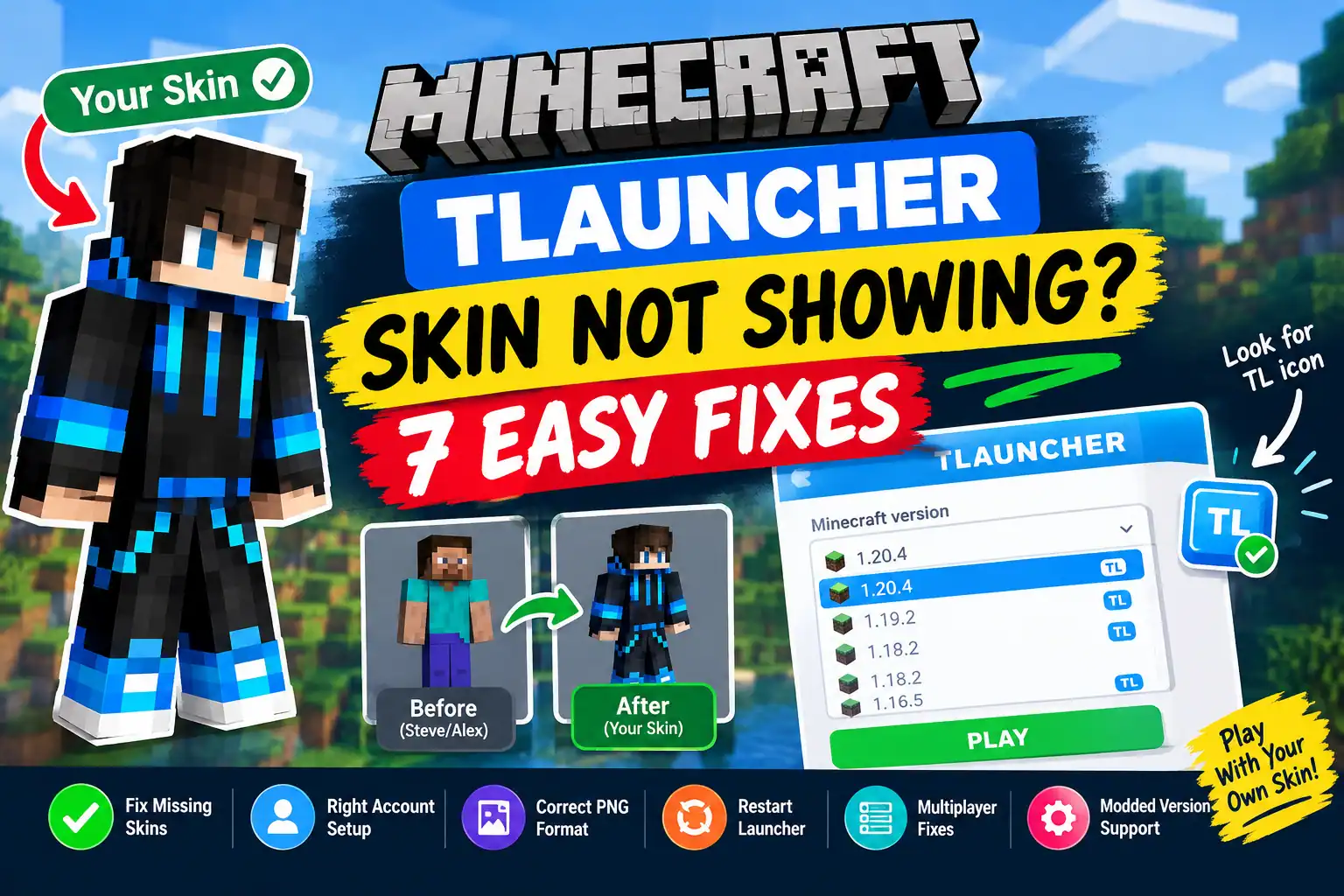
You have uploaded your favourite Minecraft skin, opened the game, and entered your world. But instead of seeing your custom character, Minecraft still shows Steve or Alex. Sometimes, the skin looks correct in the launcher but disappears as soon as you join a multiplayer server.
It can be frustrating, especially when you have already tried changing your skin several times.
The good news is that you usually do not need to reinstall Minecraft to troubleshoot this problem.
The most common causes include using a Minecraft version that does not support TLauncher skins, signing in with the wrong account, uploading an incompatible skin file, or running into a server-side skin issue.
In this guide, we will go through the fixes one by one, starting with the simplest solution.
Quick Fix: Try These Steps First
If you want to solve the problem quickly, follow this checklist:
- Check that you are signed in to the same TLauncher account used to upload your skin.
- Select a Minecraft version with the TL icon.
- Check that your skin is a compatible PNG file.
- Restart the launcher and Minecraft after changing your skin.
- Test the skin in a single-player world and then on a multiplayer server.
The TL icon is particularly important when you use TLauncher’s own skin system. Its official instructions explain that versions without this icon may not display TLauncher skins. Official TLauncher skin guide.
Fix 1: Select a Minecraft Version With the TL Icon
This is the first thing you should check.
TLauncher uses its own skin system for supported Minecraft versions. If you launch a version without the TL icon, your uploaded skin may not appear even if it is correctly saved to your account.
How to check it
- Open TLauncher on your computer.
- Look at the Minecraft version selector.
- Find a compatible version marked with the TL icon.
- Select that version and launch Minecraft.
- Enter a world and check your character.
If you cannot find a TL icon beside your selected version, try another compatible version available in the launcher.
Important: Do not assume that every Minecraft version supports TLauncher skins. Compatibility can vary between versions, particularly with newer releases and custom modded installations.
Fix 2: Make Sure You Are Logged In to the Correct Account
Another common reason for missing skins is an account mismatch.
For example, you might upload a skin to one TLauncher account but launch the game using a different account or an offline profile.
Your skin may be saved correctly, but the game is not using the profile associated with it.
Follow these steps
- Open the TLauncher website and sign in to your account.
- Check your profile to confirm that your desired skin is uploaded.
- Open the TLauncher application.
- Check which account is selected in the launcher.
- Sign in using the same account associated with the uploaded skin.
- Launch a Minecraft version marked with the TL icon.
If the skin still does not appear, sign out and sign back in, then restart the game.
Never share your account password with someone offering to fix your skin.
Fix 3: Upload the Skin in the Correct PNG Format
Sometimes, the problem is not the launcher at all. It is the skin file.
Minecraft skins use a specific texture layout. An ordinary character picture, wallpaper, or screenshot cannot be used directly as a skin.
Check your skin file
- File type: PNG.
- Standard layout: Usually 64 × 64 pixels, with 64 × 32 also supported by relevant skin formats.
- File integrity: The image should open correctly and should not be corrupted.
- Texture layout: The skin must follow Minecraft’s expected character texture layout.
If your file is in JPG or WebP format, simply renaming the extension to .png will not convert it properly. Export it as a real PNG instead.
How to upload it again
- Open your TLauncher profile.
- Find the skin upload option.
- Select your compatible PNG file.
- Save the change.
- Restart the launcher and open a supported Minecraft version.
For standard skins, start with a regular Minecraft-compatible texture rather than an unusually large or modified file.
Fix 4: Restart Minecraft and Refresh Your Login Session
Did you change your skin while Minecraft was already running?
The game may not immediately reflect the updated skin.
Instead of repeatedly uploading the same image, try refreshing your session.
What to do
- Save your skin changes.
- Close Minecraft completely.
- Exit TLauncher.
- Open TLauncher again.
- Confirm that you are signed in to the correct account.
- Start a version with the TL icon.
Load a world and check the character again.
If nothing changes, give the launcher a little time and try once more. Avoid making repeated account changes when you are unsure whether the previous update has been saved.
Fix 5: Your Skin Works in Single-Player but Not in Multiplayer
This is a slightly different problem.
Imagine that your custom skin appears correctly in your own world, but your friends see Steve or Alex when you join their server.
In this situation, the skin file itself may be fine. The problem could be related to the server, its skin-handling system, or differences between the launchers used by you and your friends.
How to troubleshoot multiplayer skins
- Test your skin in a single-player world.
- Join a different multiplayer server where you have permission to play.
- Ask a friend whether they can see your skin.
- Check whether the server uses a custom skin plugin or another skin-management system.
- If you manage the server, review its skin configuration and relevant plugin documentation.
Some servers use their own systems to display player skins. These systems can conflict with a launcher’s custom skin feature.
If you are using a server with a separate skin-management plugin, check the plugin’s official troubleshooting instructions before changing your launcher settings.
Remember: A skin that works in single-player is not guaranteed to display on every multiplayer server.
Fix 6: Check Whether the Problem Comes From a Modded Minecraft Version
Do you use Forge, OptiFine, or a custom modpack?
A custom installation can sometimes behave differently from a standard launcher version. In particular, a manually installed or modified Minecraft version may not have the required TLauncher skin support enabled.
Try this test
- Keep your existing installation unchanged.
- Launch a separate, clean Minecraft version supported by your launcher.
- Select a version with the TL icon.
- Enter a single-player world.
- Check whether your skin appears.
If the skin works in the clean installation but not in your modded version, the issue is likely related to that installation’s configuration or compatibility.
TLauncher provides separate instructions for enabling its skin system in certain custom versions: Enable TLauncher skins in custom versions.
Before editing configuration files, back up your Minecraft worlds and any important modpack settings. Do not delete your entire .minecraft folder as a first step.
Fix 7: Check Your Internet Connection and Launcher Authentication
TLauncher skins rely on the launcher’s account and skin services. If the launcher cannot properly authenticate your account or retrieve skin information, your skin may fail to load.
A weak connection or temporary service issue can sometimes make troubleshooting confusing.
Try these checks
- Open a few normal websites to confirm that your internet connection is working.
- Sign out of your launcher account and sign in again.
- Restart the launcher.
- Check the launcher’s official help pages for current authentication or skin-service issues.
- If the problem continues, wait a while and test again.
If a security application reports a problem with a launcher or downloaded file, do not disable your computer’s protection just to make skins work. Verify the software’s source and security status before proceeding.
If account authentication keeps failing, consult the official TLauncher Help Centre.
Why Does TLauncher Still Show Steve or Alex?
Here is a quick way to identify what might be wrong.
| What you see | What to check |
|---|---|
| Skin is missing everywhere | Account, uploaded skin and TL icon |
| Skin appears on the website but not in-game | Selected account and Minecraft version |
| Skin worked before changing versions | Version compatibility |
| Skin works in single-player only | Multiplayer server configuration |
| Skin appears incorrectly after uploading | PNG format and texture layout |
| Skin stopped appearing after installing mods | Modded installation compatibility |
| Login or skin loading fails | Connection and authentication |
These are troubleshooting clues, not guaranteed diagnoses. If one fix does not work, move to the next instead of repeating the same step.
Frequently Asked Questions
Why is my TLauncher skin not showing in Minecraft?
The most common causes are using the wrong account, launching a version without the TL icon, uploading an incompatible skin file, or encountering a multiplayer server issue. Start by checking your account and selected Minecraft version.
How do I fix the TLauncher skin not working problem in 2026?
Sign in to the account associated with your skin, upload a compatible PNG, select a supported Minecraft version with the TL icon, and restart the launcher. If the skin only fails on multiplayer servers, check the server’s skin configuration.
Why can I see my skin in TLauncher but not in Minecraft?
The skin preview and the running game may use different account or version settings. Confirm that you have selected the correct account and launched a version that supports TLauncher skins.
Why do my friends see Steve instead of my custom skin?
Your friends’ launchers or the multiplayer server may not support the same skin system. Test your skin in another world or server, and check the server’s skin-related settings.
Do I need to reinstall Minecraft to fix missing skins?
Usually, no. Check your account, TL icon, skin file and launcher session first. Reinstalling should not be the first troubleshooting step.
Can mods cause Minecraft skins to stop working?
They can contribute to compatibility issues, especially when a custom installation uses a different configuration from the launcher’s supported versions. Test a separate, clean installation to help identify the cause.
Will a TLauncher skin show for every Minecraft player?
Not necessarily. TLauncher skins depend on compatible versions and the relevant skin system. Other players and multiplayer servers may use different systems for displaying skins.
Final Thoughts
If your Minecraft TLauncher skin is not showing, do not immediately delete your game or reinstall everything.
Start with the TL icon, confirm that you are using the correct account, and check that your skin is a compatible PNG file. Restart the launcher after making changes.
If the skin works in single-player but disappears in multiplayer, focus on the server and its skin-handling system instead.
The best approach is to test one change at a time. This helps you identify the actual cause without risking your worlds, mods or saved settings.
Found a different solution? Share the Minecraft version you are using and whether the skin disappears in single-player or multiplayer. That information can help narrow down the problem.