
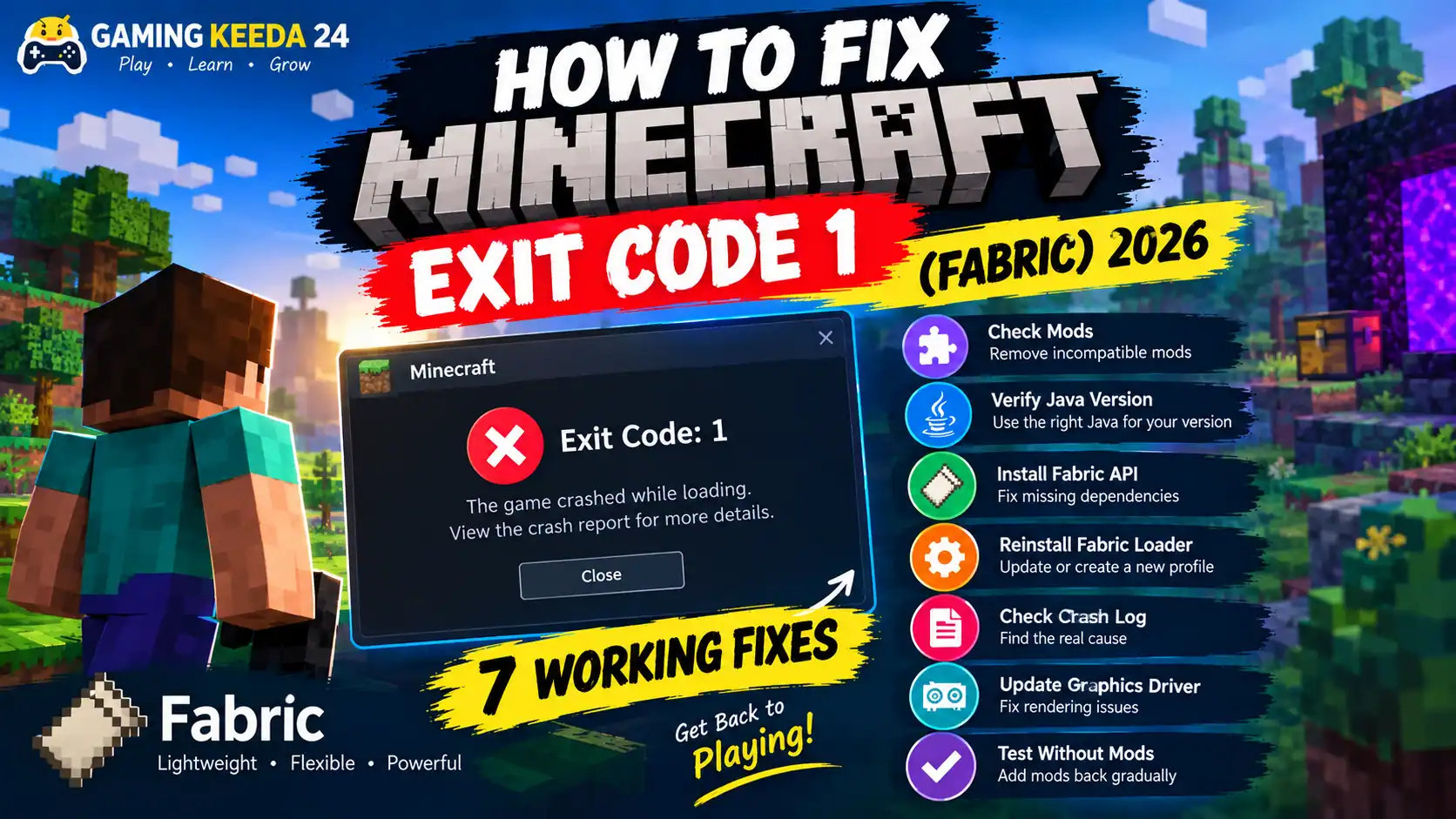
Getting Minecraft Exit Code 1 when using Fabric can be frustrating, especially when the game crashes before the main menu appears. You launch Minecraft, wait for it to load, and suddenly see an error message with no clear explanation.
The good news is that you can often fix this problem without reinstalling the entire game.
At Gaming Keeda 24, we recommend checking your mods, Java version, and Fabric installation first. These are practical starting points because Exit Code 1 is a general launch-failure code, not a specific diagnosis.
In this guide, you will learn how to troubleshoot Minecraft Fabric crashes on Windows, macOS, and Linux.
Why Does Minecraft Fabric Show Exit Code 1?
Minecraft Java Edition with Fabric can fail to launch for several reasons:
- A mod is incompatible with your Minecraft version.
- A mod requires Fabric API or another missing dependency.
- You installed a Forge or NeoForge mod instead of a Fabric mod.
- Minecraft is using an incompatible Java version.
- Fabric Loader or the launcher profile is damaged.
- A graphics driver or another system component is causing a crash.
The best solution depends on the actual error in your log. Try the following fixes in order, testing the game after each major change.
1. Remove Incompatible Fabric Mods
This is one of the best first checks if Minecraft started crashing after you installed a mod.
How to test your mods:
- Close Minecraft and the launcher.
- Press
Windows + R. - Enter
%appdata%\.minecraftand press Enter. - Find the
modsfolder. - Move its contents to a temporary folder outside the Minecraft directory.
- Launch the Fabric profile again.
If Minecraft opens successfully, one or more mods may be responsible.
Restore your mods in small groups until the crash returns. Then test the last group individually to identify the problematic mod.
Make sure every mod supports your exact Minecraft version and Fabric Loader. Also check whether it requires Fabric API or another dependency.
Official reference: Fabric Documentation — Installing Mods.
2. Check Your Java Version
An incompatible Java installation can prevent Minecraft from launching.
The correct Java version depends on your Minecraft release. For example, Minecraft 1.20.5 and later versions in that generation require Java 21, while Minecraft 26.1 requires Java 25 according to the current Fabric documentation. Older Minecraft versions may require different Java versions.
Important: The official Minecraft Launcher includes its own Java runtime. You may not need to install Java manually if you use the standard launcher.
If you use a third-party launcher or a custom Java path, check which runtime it is configured to use.
For manual Java checks on Windows:
- Press
Windows + R. - Type
cmdand press Enter. - Run this command:
java -version- Check the version displayed.
- Compare it with the requirements for your Minecraft version.
If you need a different Java version, download it from a trusted source such as Eclipse Adoptium.
Official guide: Installing Java with Fabric.
3. Make Sure Fabric API Is Installed
Fabric Loader and Fabric API are not the same thing.
Fabric Loader allows Fabric mods to load, while Fabric API provides additional functionality used by many mods.
If a mod requires Fabric API and it is missing, Minecraft may fail to start.
To fix this:
- Check the mod’s download page.
- Read its requirements and dependencies.
- Download the Fabric API version that matches your Minecraft release.
- Place the downloaded
.jarfile in yourmodsfolder. - Restart Minecraft.
Do not install Fabric API blindly if your mods do not require it. Always check the instructions for your specific mod collection.
4. Reinstall or Update Fabric Loader
If the game still crashes with an empty mods folder, your Fabric installation may need attention.
- Close Minecraft and the launcher.
- Visit the official Fabric website.
- Download the appropriate installer for your operating system.
- Select your intended Minecraft version.
- Install Fabric and create a profile if needed.
- Open the launcher and select the correct Fabric installation.
Before updating, confirm that your mods support the Minecraft version you selected. A newer Fabric Loader does not automatically make an outdated mod compatible.
If you already have an installation, you can also create a separate test profile rather than immediately replacing your existing setup.
5. Check the Minecraft Crash Report
If the first four fixes do not work, examine the crash report instead of guessing.
On Windows, press Windows + R and enter:
%appdata%\.minecraft\crash-reportsOpen the newest report in a text editor.
Look for:
- The main exception or error message.
- Mod names mentioned near the failure.
- Missing dependencies.
- Java-related errors.
- Graphics or rendering errors.
If there is no crash report, check the logs folder and open latest.log. Launch failures do not always produce a separate crash report.
You can also use the official Fabric crash-report troubleshooting guide.
Privacy tip: Before sharing logs publicly, remove personal information such as usernames or private file paths when appropriate.
6. Check Graphics Drivers and Custom Settings
If Minecraft crashes during startup or while loading graphics, your graphics driver or a rendering mod could be involved.
Try these steps:
- Update your Intel, AMD, or NVIDIA graphics driver using the manufacturer’s official website.
- Temporarily remove graphics-related mods and shaders.
- Restore custom launcher arguments to their defaults.
- Remove unsupported JVM arguments you added manually.
- Restart your computer and test again.
Do not delete random system files or change advanced Java arguments unless you understand what they do.
7. Test Minecraft Without Mods Before Reinstalling Everything
Before deleting Minecraft or reinstalling Windows, run a clean test.
- Open the official Minecraft Launcher.
- Create or select a vanilla installation for the same Minecraft version.
- Launch the game without mods.
- If vanilla works, create a fresh Fabric profile.
- Test Fabric without mods.
- Add your mods back gradually.
This process helps you determine whether the issue is related to Minecraft itself, Fabric Loader, or a particular mod.
Back up your worlds before making major changes. Your saves are usually stored in the .minecraft/saves folder, but third-party launchers may use different game directories.
Recommended YouTube Tutorials
These YouTube searches can help you follow the troubleshooting steps visually.
1. How to Fix Minecraft Exit Code 1 with Fabric
Watch Minecraft Fabric Exit Code 1 tutorials
2. How to Fix Minecraft Fabric Mod Crashes
Watch Fabric mod troubleshooting tutorials
3. How to Install Fabric and Fabric API Correctly
Watch Fabric installation tutorials
These are search links rather than individually verified videos. Choose tutorials that match your Minecraft version, and verify commands and downloads against official documentation.
Frequently Asked Questions
What does Minecraft Exit Code 1 mean?
It indicates that the game process exited with an error. It does not identify the exact cause on its own, so you need to inspect the log or crash report.
Can a Fabric mod cause Exit Code 1?
Yes. An incompatible mod, missing dependency, or conflict between mods can prevent Minecraft from starting.
Should I reinstall Java to fix Exit Code 1?
Not necessarily. First check which Minecraft version you use and which Java runtime your launcher selects. The official launcher already includes a Java runtime for Minecraft.
Does Exit Code 1 mean my Minecraft world is corrupted?
No. A launch failure does not automatically mean your world is damaged. Back up your saves before making major changes, especially if you suspect a mod has altered world data.
How do I fix Exit Code 1 on a modded Minecraft installation?
Temporarily remove the mods, test Fabric with no mods, and then add compatible mods back gradually. If it still fails, inspect the crash report and launcher logs.
Final Verdict
The most useful way to fix Minecraft Exit Code 1 with Fabric in 2026 is to identify the actual cause instead of trying random fixes.
Start by testing without mods, checking Java compatibility, verifying Fabric API dependencies, and examining the crash log. If necessary, reinstall Fabric in a fresh profile and update your graphics driver.
At Gaming Keeda 24, we recommend changing one thing at a time and keeping backups of your worlds. This makes troubleshooting easier and helps you avoid creating additional problems while trying to fix the original one.