
PUBG Mobile is a popular battle royale game where players compete against each other to become the last person or team standing. Players can explore the map, collect weapons and equipment, work with teammates, and survive until the end of the match.
Your in-game nickname is an important part of your gaming identity. A stylish PUBG Mobile name with unique letters and special symbols can make your profile look more personal and help your name stand out.
How to Write a Stylish Name in PUBG Mobile
Want to make your PUBG Mobile name look more unique? You can decorate your in-game nickname with stylish letters and special symbols instead of using plain text.
The process is simple: create a name, copy it, paste it into the game’s rename field, and check whether PUBG Mobile accepts it.
Follow these steps to get started.
Step 1: Choose Your Name
First, decide what name you want to use in the game. You can use your own nickname, gaming identity, or squad name.
Here are some examples:
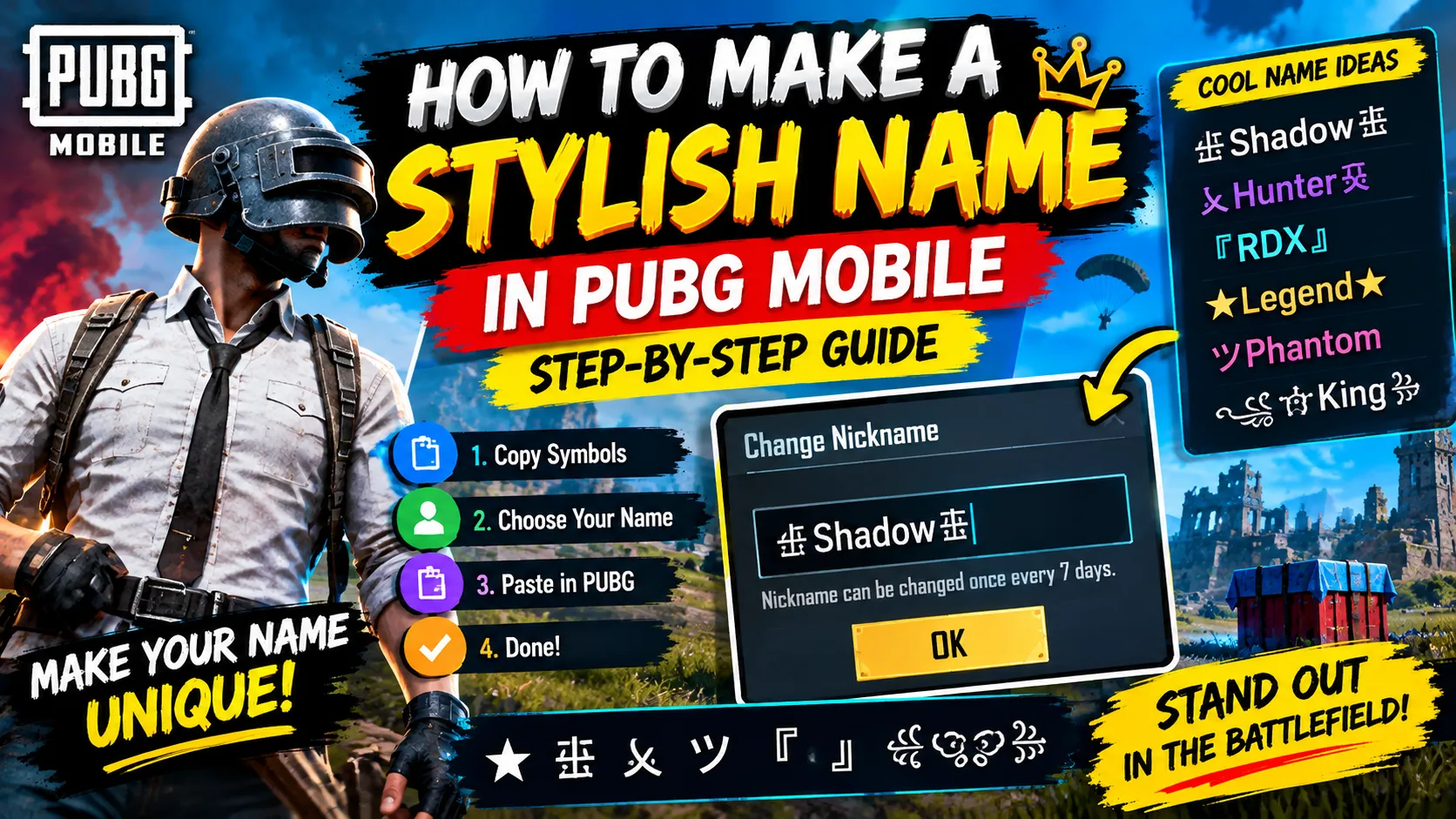
亗 Shadow 亗乂Hunter乂『RDX』★Legend★ツPhantom
These are examples of name styles, not guaranteed available usernames. Some symbols or spaces may be rejected by the game.
Step 2: Copy Stylish Symbols
You can make your nickname look different by adding decorative symbols.
Try these symbols individually:
亗 乂 ツ ★ 彡 『』 ꧁꧂ 么
To copy a symbol on your phone, press and hold the symbol or select it and tap Copy. On a computer, highlight it and use Ctrl + C.
Not every symbol works on every device or game version, so test your preferred design before confirming a name change.
Step 3: Create Your Stylish PUBG Name
Combine your chosen name with a few symbols.
For example:
| Simple name | Stylish version |
|---|---|
| Shadow | 亗Shadow亗 |
| Hunter | 乂Hunter乂 |
| Legend | ★Legend★ |
| Phantom | ツPhantom |
| RDX | 『RDX』 |
Keep your design readable. Adding too many symbols can make your nickname difficult for teammates to recognise.
Step 4: Paste Your Name Into PUBG Mobile
Once your name is ready, follow these steps:
- Open PUBG Mobile.
- Go to your profile or inventory.
- Find your Rename Card, if you need to change your existing nickname.
- Use the card to open the name-change field.
- Copy your finished name and paste it into the field.
- Check the name preview carefully.
- Confirm only if the name is accepted and displayed correctly.
PUBG Mobile’s official help centre explains that a Rename Card is used to change your in-game nickname. Check your inventory before buying another one. Official PUBG Mobile rename instructions.
Step 5: Fix the Stylish Name Not Working Problem
Sometimes, a stylish name does not work even when you copy it correctly.
Here are the common reasons:
- Unsupported symbols: Remove the unusual symbol and try a simpler one.
- Name already taken: Change part of the nickname to make it different.
- Name too long: Shorten the name and remove extra decorations.
- Incorrect paste: Copy the complete name again and check for unwanted spaces.
- Display problems: If a character appears as a blank box, replace it with a simpler character.
Always check the final preview before confirming the change. A Rename Card may be consumed when you successfully change your nickname.
Frequently Asked Questions
Can I use special symbols in my PUBG Mobile name?
Some special symbols are accepted, while others may be rejected. Test your chosen name in the game’s rename field before confirming.
Can I change my PUBG Mobile name without a Rename Card?
Changing an existing nickname generally requires a Rename Card. Check your inventory and current in-game events for available cards.
Why is my stylish name showing as boxes?
Your chosen characters may not be supported by the game’s font or display system. Replace them with simpler symbols or ordinary letters.
How do I make my PUBG name unique?
Choose a distinctive word, add a small number of supported symbols, and try another variation if your preferred name is already taken.
Final Thoughts
Creating a stylish PUBG Mobile name is easy once you know how to copy symbols and paste them into the rename field.
Choose a readable name, test the symbols, and check the preview before confirming. This helps you avoid wasting a Rename Card on a design that does not display correctly.
Tip: Save your favourite name in your phone’s notes before changing it, so you can keep a copy for later.